Download

Seeing a Windows warning? You're completely safe.

Windows SmartScreen sometimes flags new apps it hasn't seen often it's a reputation check, not a virus alert. Here's exactly how to install Almo in two quick clicks.

Verified publisher VI8 ltd
Code-signed installer EV certificate
Trusted by 1000+ users

Install Almo in 2 clicks

Follow along with the screenshots — the highlighted areas show exactly where to click.

1

Click "More info"
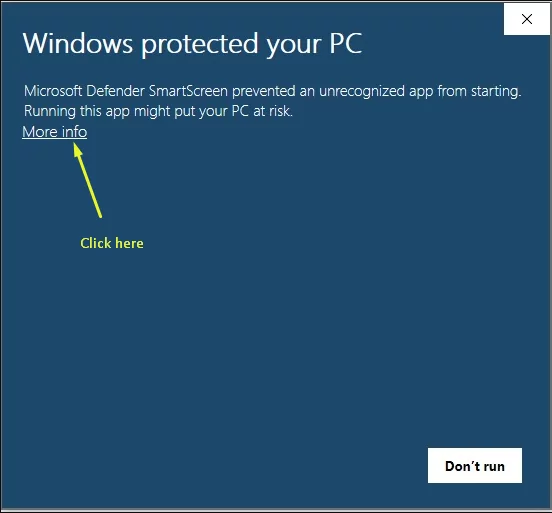
Click more info step

Click More info to verify the publisher as vi8 ltd

2

Verify publisher → Run anyway
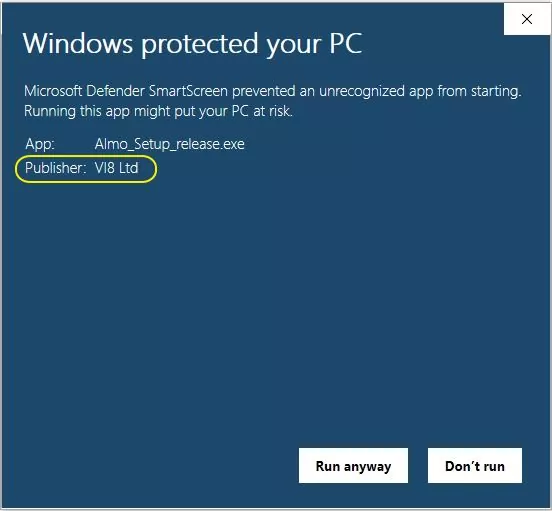
Verify publisher and run anyway

Once you've verified vi8 ltd as the publisher, please click Run anywayto complete the installation

If the publisher is anything other than "vi8 ltd", stop.

That means the file was modified or came from an unofficial source. Re-download Almo from our official site and try again.

Why does this happen?

Microsoft SmartScreen flags installers it hasn't seen many times before. Almo is a newer release, so it doesn't yet have the install volume Microsoft uses to skip the prompt. The warning is about reputation, not safety — our installer is digitally signed by vi8 ltd.

Our Windows installer is signed with a code-signing certificate issued to vi8 ltd. After clicking 'More info', you'll see 'Publisher: vi8 ltd' — that's a cryptographic guarantee the file wasn't tampered with after we built it.

Stop and don't run it. If the publisher line is missing or shows a different name, the file may have been modified or downloaded from an unofficial source. Re-download Almo from our official website and try again.

Yes. As more people install Almo, Microsoft's reputation system learns the file is safe and stops showing the prompt. Until then, the two-step flow above gets you installed in seconds.

Ready to install Almo?

If your download hasn’t started yet, click “Download” below and you’ll be up and running in under a minute.