

How to change your Working Project in Almo
Your Working Project is the Azure DevOps project Almo treats as home, and you can change it in a few seconds from Almo’s settings. When you move to a different team or your sprint shifts to another project, you point Almo at the new one and its home screen updates straight away. This guide covers what the Working Project controls, when to change it, how to switch in a few steps, and how to switch back.
If you have not connected Almo to Azure DevOps yet, start with Connect Almo to Azure DevOps, where you set your first Working Project, then come back here when you need to switch it.
What is a Working Project in Almo?
A Working Project is the single Azure DevOps project the Almo Outlook add-in focuses on by default. The work items on your Almo home screen (linked, related, and recently updated) all come from it. You set one Working Project when you first connect, and you can switch to another from Almo’s settings at any time.
When to change your Working Project
You set one Working Project at a time because it keeps Almo’s home screen focused on the work in front of you. Change it whenever that focus moves: your sprint shifts to a different project, you join or cover for another team, or a support rotation spans more than one project. Switching takes a few seconds, so there is no cost to moving your focus as often as your work does.
How to change your Working Project in Almo
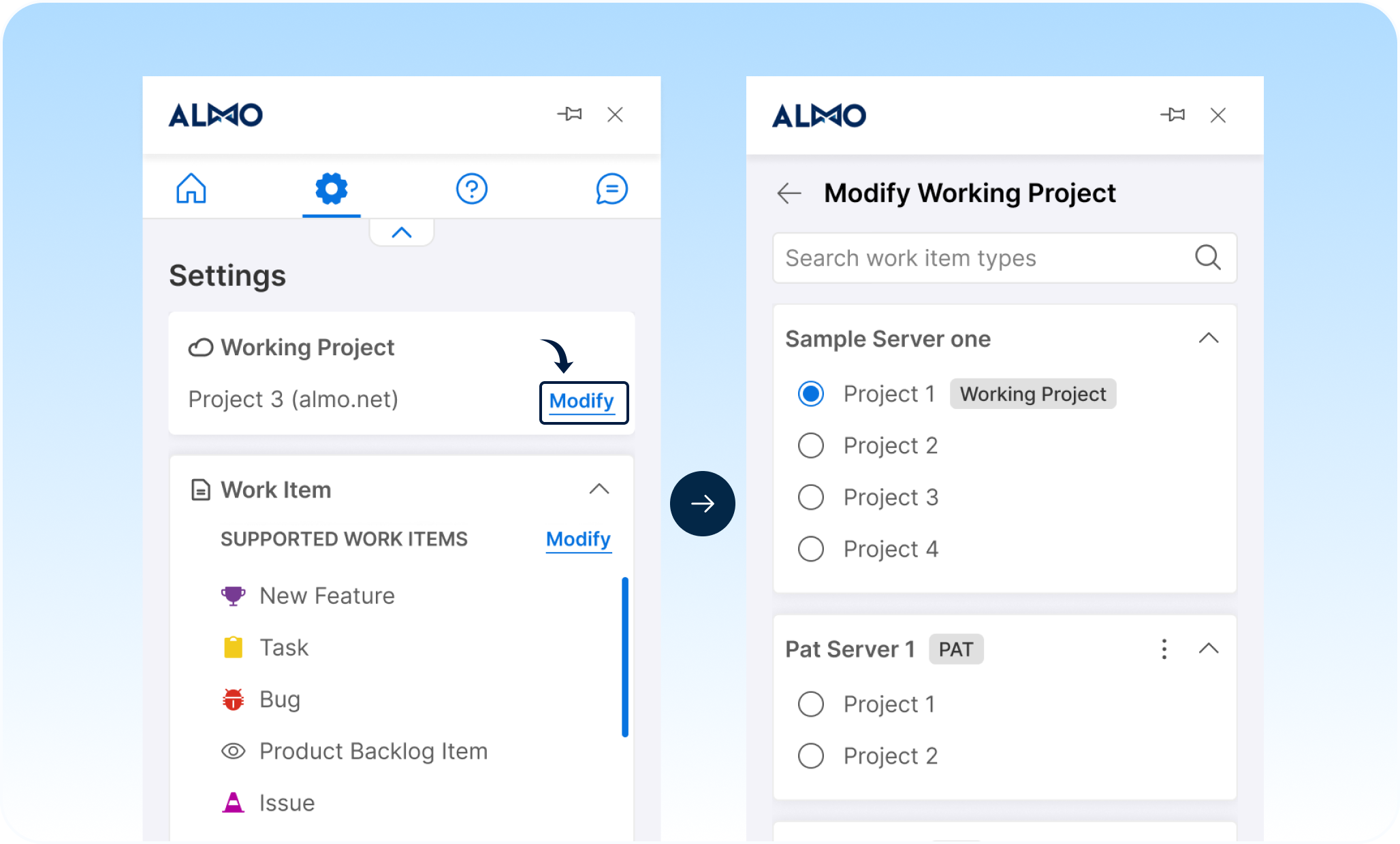
- Open Settings in Almo. In the Almo pane, select the settings (gear) icon at the top.
- Select Modify next to your Working Project. The Settings screen shows your current Working Project at the top, for example Project 3 (almo.net). Select the Modify link beside it.
- Choose a project from the list. The Modify Working Project screen lists every connected server (each one an Azure DevOps organisation) with its projects beneath it. Your current Working Project carries a Working Project badge. Select the radio button next to the project you want.
- Save your choice. Save the change using the Save control below the project list. Almo immediately starts showing recent activity from the new project.
What changes after you switch
As soon as you save, your Almo home screen reflects the new project. The recently updated work items and suggestions now come from it. Existing links between emails and work items are untouched, because changing your Working Project changes what Almo shows by default, not the work items themselves.
How to switch back
Switching back uses the same screen. Open Settings, select Modify beside the Working Project, choose your previous project, and save. There is no limit on how often you switch, so you can move your focus as your work moves.
The Modify Working Project screen is also where you manage the servers you have connected. From here you can add another Azure DevOps organisation, including one you reach through a Personal Access Token, or remove a server you no longer use. Connect Almo to Azure DevOps covers adding a server in full.
Working across more than one project
You set one Working Project at a time, but you are not limited to it. Discover, Almo’s search for existing work items, can look inside any connected project without changing your default. The practical approach is to keep your Working Project set to where most of your day-to-day work sits, and reach for Discover when you need an item that lives elsewhere. Find work items from Outlook with Almo Discover covers it in full.
Troubleshooting your Working Project
Where do I change my Working Project in Almo? Open Settings in the Almo pane, then select Modify next to the Working Project shown at the top. Choose a project from the list and save.
Will changing my Working Project affect work items already linked to my emails? No. Changing your Working Project changes the project Almo focuses on by default. Existing links between emails and work items stay in place.
Does my Working Project stay the same on my other devices? Yes. Almo settings, including your Working Project, sync across the devices where you use Almo, so your choice follows you between Windows, Mac, and Outlook on the web.
Why is the project I want missing from the list? The Modify Working Project screen only lists servers you have already connected, where each server is an Azure DevOps organisation. If the project belongs to an organisation that is not there, connect it first. For an organisation outside your Microsoft account, add it with a Personal Access Token, which the connection guide walks through.
Can I search a project without making it my Working Project? Yes. Use Discover to search any connected project on demand. Your Working Project stays as your default while you do.
Always focused on the right project
Your Working Project keeps Almo focused on the project you are working in, and changing it takes only a few seconds whenever that focus moves. Set it to where your work sits today, and switch as soon as it moves on.
If anything about switching your Working Project does not behave as described here, the Almo team can help. Write to [email protected] or raise a support ticket from inside Almo.


