Azure DevOps work item templates in Almo
With the inbuilt Templates capability in Azure DevOps, you can apply a chosen set of default field values every time you create a work item, in a single click. Templates are a native Azure DevOps feature, and New Almo works with them directly, so a template you create in Azure DevOps is available in Almo, and a template you capture in Almo is available to your team in Azure DevOps. What Almo adds on top is the ability to populate those field values from the email a work item came from, which Azure DevOps templates cannot do on their own.
This guide explains what these templates are, how to create and apply one from within Outlook, how to populate fields from an email, and how to import the templates you already built in Classic Almo.
New here? Almo is a Microsoft Outlook add-in for creating, tracking, and managing Azure DevOps work items from your inbox. This guide assumes you have already connected Almo to Azure DevOps.
What is an Azure DevOps work item template?
A work item template holds a chosen set of field values – such as the assignee, tags, state, and an opening description – that Azure DevOps applies to a new work item so your team does not enter the same details by hand each time. Because the template is stored in Azure DevOps rather than on a single machine, everyone on the project can use it, and it appears in the Azure DevOps portal alongside your work items. Each template belongs to one work item type, so a Bug template applies to Bugs and a Task template applies to Tasks.
New Almo uses these native templates as they are, with no separate template library to maintain. A template created in either place is available in both.
What Almo adds: Email Expressions
A standard Azure DevOps template applies fixed values and has no way to read the email a request arrived in. Almo closes that gap. When you build a template in Almo, you can point a field at the email instead of giving it a fixed value, so the work item title can take the email subject, a reporter field can take the sender’s name, and a date field can take the date the email arrived. These placeholders are called Email Expressions, and the full list appears further down.
How to create a work item template in Almo
You create a template by capturing a work item you have already filled in. The Template button sits at the top of any work item you are creating or editing.
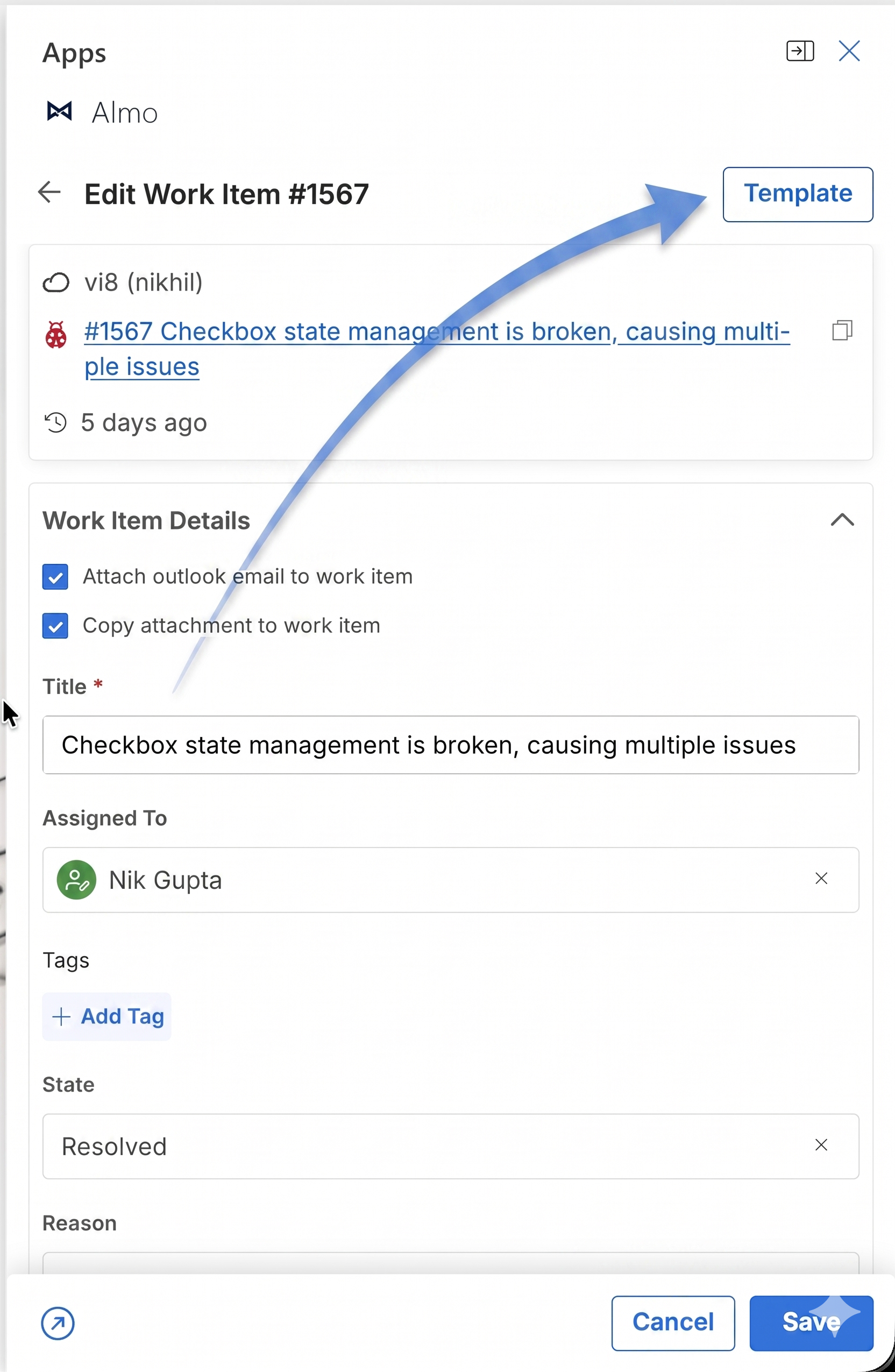
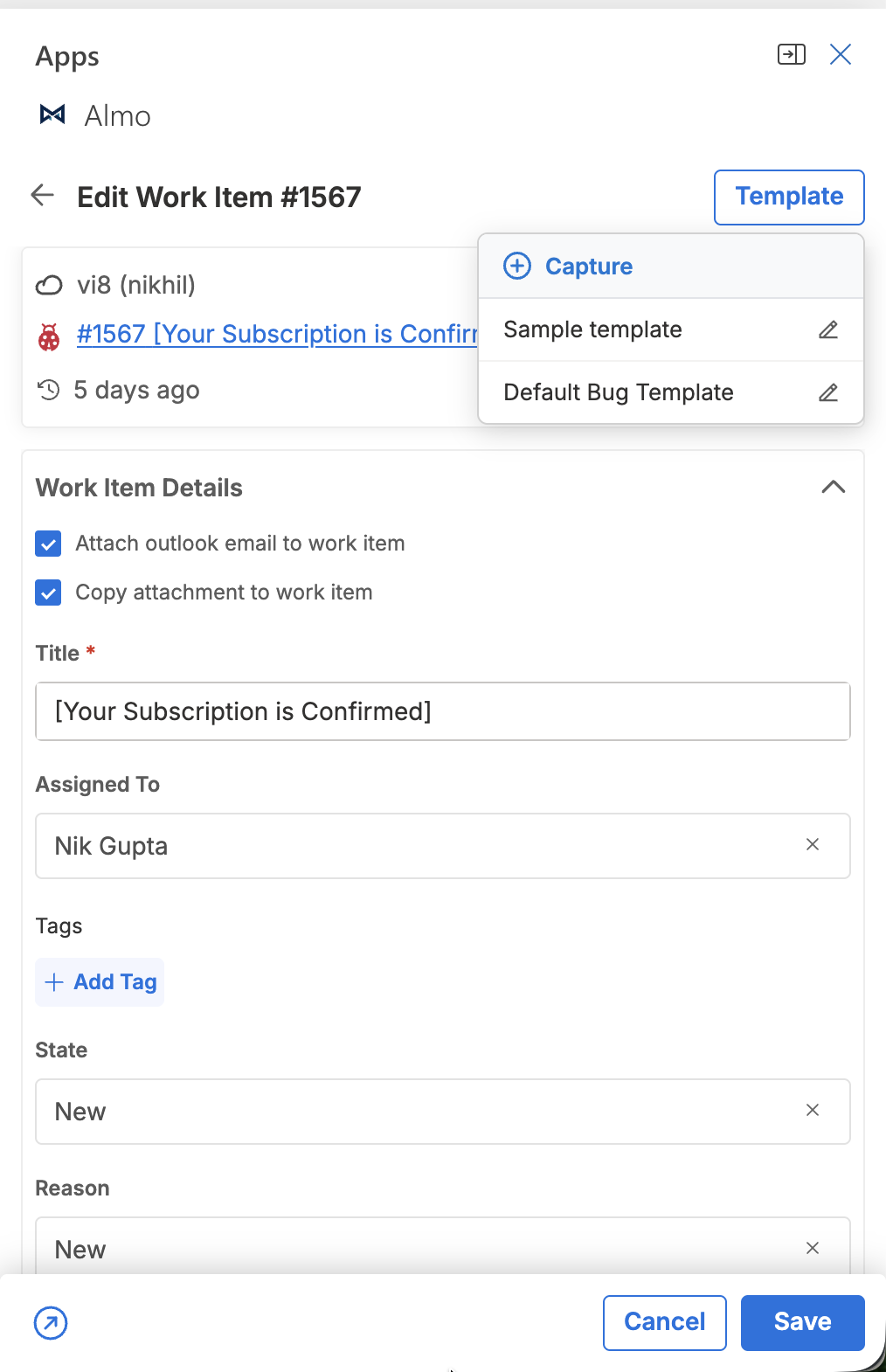
- Open the Template menu. On a work item, select Template. The menu opens with Capture at the top, followed by every template already available to you, including any built in the Azure DevOps portal.
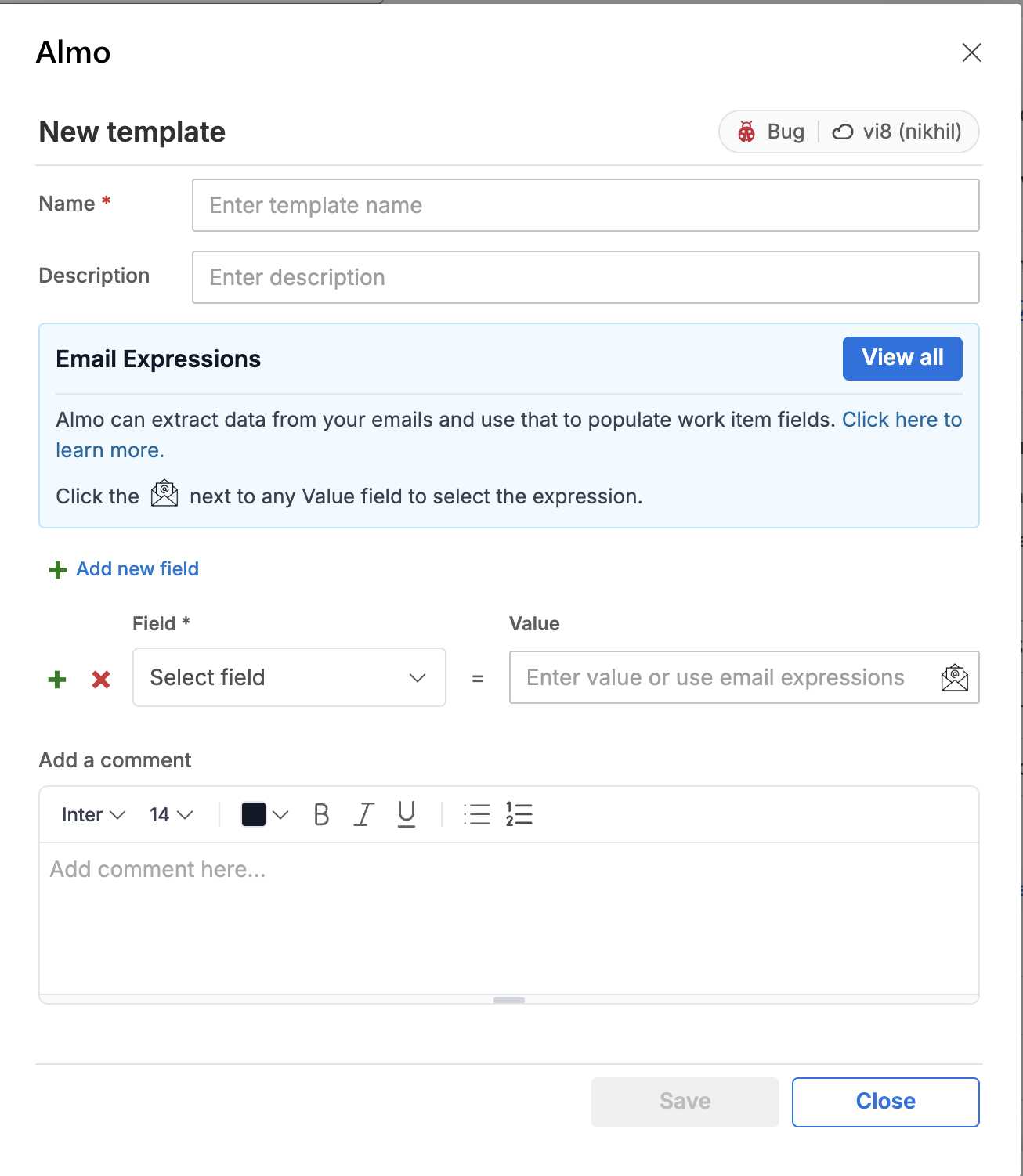
- Select Capture. The current form, with its field values, tags, and description, opens in the New template screen, which shows the work item type and the server the template belongs to.
- Name the template. Enter a Name, and a short Description if your team keeps several.
- Set the fields. Use Add new field to choose a field and the value it carries. To populate that value from the email, select the envelope icon beside it and choose an Email Expression.
- Add an opening comment if it helps. A triage checklist or a definition of done can sit in the comment editor so that it appears on every work item created from the template.
- Save. The template is stored in Azure DevOps and is available in both Almo and the portal.
How to apply a template
To apply a template, open the Template menu on a work item and select its name. Almo populates the form with the template’s values and replaces each Email Expression with the matching detail from the current email. Adjust anything specific to this work item, then save it as usual.
How to edit or remove a template
To change a template, open the Template menu and select the pencil icon beside its name. The editor opens with the fields you set when you created it. Because the template is stored in Azure DevOps, your change applies for everyone who uses it.
Email Expressions Almo supports
In the New template screen, select the envelope icon beside any Value field and choose an expression. Almo replaces it with the real value when the template is applied.
| Expression | Replaced with |
|---|---|
[BODY] |
The body or text of the email. |
[TOEMAIL] |
The recipient’s email address. |
[TONAME] |
The recipient’s name. |
[FROMEMAIL] |
The sender’s email address. |
[FROMNAME] |
The sender’s name. |
[SUBJECT] |
The subject of the email. |
[SENTDATE] |
The date the email was sent. |
[RECEIVEDDATE] |
The date the email was received. |
[NOW] |
The current date, from your computer’s calendar. |
[ALL-TO-RECIPIENTS] |
A semicolon-separated list of Name <Email> for every recipient. |
[ALL-CC-RECIPIENTS] |
A semicolon-separated list of Name <Email> for every CC recipient. |
[ALL-BCC-RECIPIENTS] |
A semicolon-separated list of Name <Email> for every BCC recipient. |
Setting the title to [SUBJECT] turns a support request into a work item titled with the customer’s own subject line, and adding [FROMNAME] to a field records who raised it, without any manual entry.
How to import your Classic Almo templates
If you used Classic Almo, you do not need to rebuild your templates by hand. New Almo reads your Classic template files and recreates each one as an Azure DevOps template. Classic Almo stored each template as a JSON file under %appdata%\vi8\almo\templates on the machine where it ran, and New Almo imports those files to create the equivalent Azure DevOps template for each one.
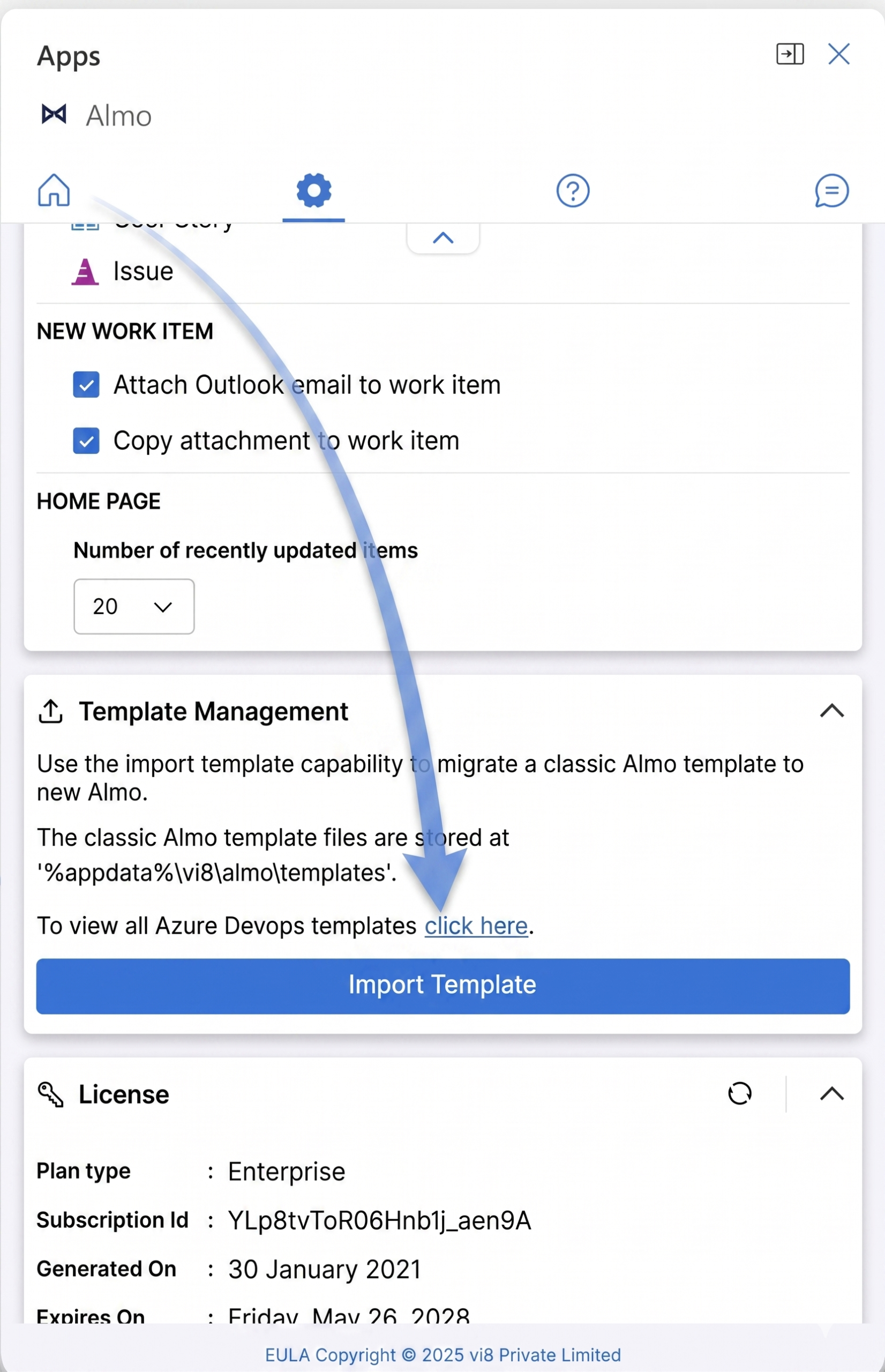
- In Almo, open Settings and locate the Template Management card.
- Select Import Template.
- Choose the JSON files from
%appdata%\vi8\almo\templates.
Almo creates a matching Azure DevOps template for each file, and they appear in the Template menu alongside the rest. The same card links to a view of every Azure DevOps template you already have, so you can confirm what was imported.
How templates stay in sync with Azure DevOps
Because Almo works on the native templates, nothing has to be exported or kept in two places. A template a colleague creates in the Azure DevOps portal is available in your Template menu the next time you create a work item, and a template you capture in Almo appears in the portal for anyone on the project. Editing a template once updates it for everyone who uses it, and moving to a new machine carries your templates with you, because they were never tied to the old one.
If you are moving from Classic Almo, this is the change worth knowing. Classic Almo kept its own templates as files on each PC, while New Almo stores them in Azure DevOps where your team can see and share them. For how the feature worked before, see Templates: remove manual data entry.
Frequently asked questions
Are Almo templates the same as Azure DevOps work item templates?
Yes. New Almo uses native Azure DevOps work item templates rather than keeping its own, so a template you create in the Azure DevOps portal appears in Almo, and a template you create in Almo appears in the portal.
Do templates I create in Azure DevOps show up in Almo?
Yes, with no import step, because any work item template in your connected Azure DevOps projects is listed in Almo’s Template menu.
What can Almo templates do that Azure DevOps templates cannot?
They can populate fields from the email. A native template applies fixed values only, whereas Almo lets a field take an Email Expression such as [SUBJECT] or [FROMNAME] and fills it from the email when the template is applied.
Can I bring my Classic Almo templates into New Almo?
Yes. Open Settings, locate the Template Management card, select Import Template, and choose your Classic template JSON files from %appdata%\vi8\almo\templates. Almo recreates each one as an Azure DevOps template.
Where did Classic Almo store its templates?
As JSON files under %appdata%\vi8\almo\templates on the PC where Classic Almo ran.
Can my team use the templates I create?
Yes, because they are stored in Azure DevOps, so anyone connected to the project can apply them.
How do I edit or delete a template?
Open the Template menu and select the pencil icon beside its name. Your change applies for everyone, since the template is stored in Azure DevOps.
Get more out of Almo
Not using Almo yet? Get it from Microsoft AppSource.
If a template does not behave as described here, the Almo team can help. Write to [email protected] or raise a support ticket from inside Almo.
Leave a Reply